

Getting started with TitanDef.
A step-by-step guide to setting up your account — from entering your invitation code to accessing your personalized dashboard.
Follow along to see what to expect at each step.
From invitation to executive-ready clarity.
The invitation
Click your unique link to begin
Create account
Name, email, and a secure password
Organization setup
Auto-fills for nonprofits via EIN
Verify email
6-digit code, under 3 minutes
Exposure review
~20 minutes of simple questions
Report & support
Executive-ready cyber clarity
The invitation
Click your unique link to begin
Create account
Name, email, and a secure password
Organization setup
Auto-fills for nonprofits via EIN
Verify email
6-digit code, under 3 minutes
Exposure review
~20 minutes of simple questions
Report & support
Executive-ready cyber clarity
Qualified 501(c)(3) organizations are eligible for the free Community Edition
Enter your invitation code
To begin, you'll need a valid invitation code. Enter it in the field provided to validate your access.
Don't have a code yet? Click "Request Access" to join our waitlist and receive an invitation.
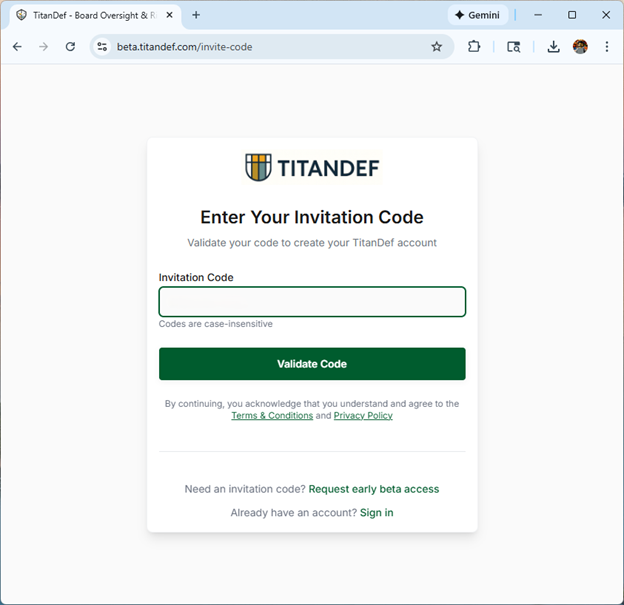
- 01Codes are case-insensitive
- 02Click "Validate Code" to proceed
- 03Request access if you don't have a code
- 04Sign in if you already have an account
Create your account
Once your code is validated, you'll create your account and provide organization details.
For nonprofits: enter your EIN to automatically populate your organization name from IRS 990 records.
If your organization name doesn't auto-fill, you can type it manually.
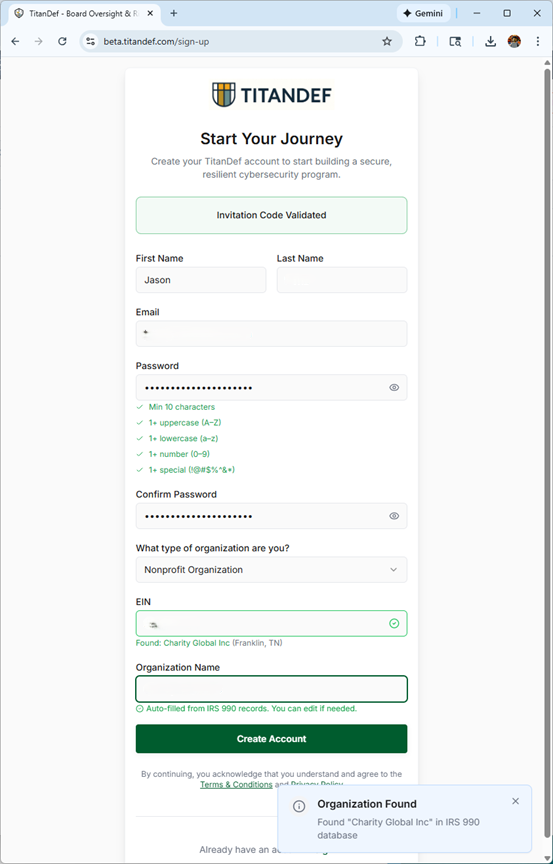
- 01Enter your first name, last name, and email address
- 02Password must be 10+ characters with uppercase, lowercase, number, and special character
- 03Select your organization type from the dropdown
- 04EIN field appears for nonprofits (auto-formats as XX-XXXXXXX)
- 05Organization name may auto-fill from IRS 990 records
Verify your email
Check your inbox for a 6-digit verification code and enter it to confirm your email address.
The verification code expires after 10 minutes. If it expires, simply click "Resend code" to get a new one.
Still not seeing the email? Check your spam/junk folder, or try using a different email address.
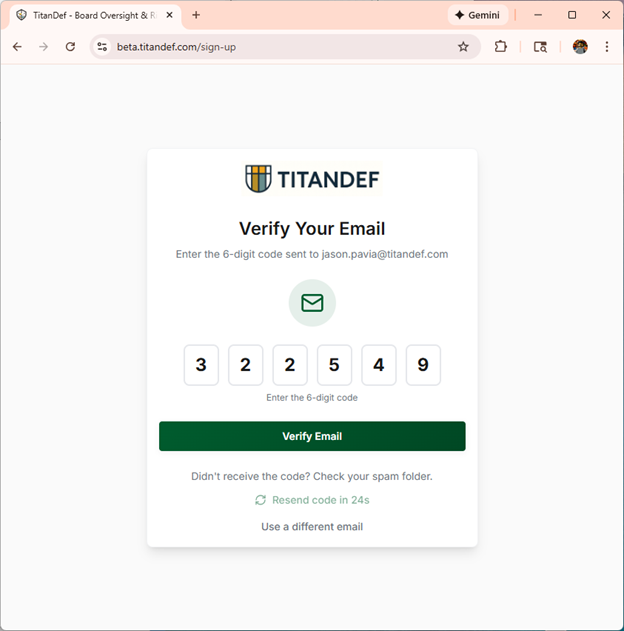
- 01Look for an email from TitanDef
- 02Check your spam folder if not received within a few minutes
- 03Use the "Resend code" option if needed
- 04You can also choose to use a different email address
Welcome to TitanDef
You're all set. You'll see a personalized welcome message and an overview of your next steps.
Take a moment to read through the welcome overview — it highlights the key features you'll be using.
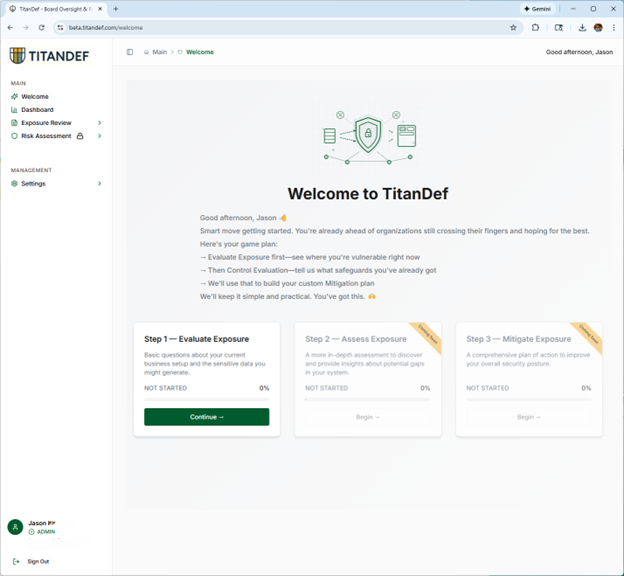
- 01Receive a personalized greeting
- 02Review the overview of your security journey ahead
- 03Click "Go to Dashboard" to access your account
Once you're in your dashboard.
Inherent Exposure Review
Run your first IER to understand your organization's unique exposure profile.
Team management
Invite team members and assign roles to collaborate on security initiatives.
Reports & insights
Access detailed reports and actionable recommendations for your board.
Need a hand?
If you run into any issues during onboarding, our team is here to help.